Service Edge
The Service Edge (SE) connects a physical customer location to a VNET. An SE is a network device with multiple ports and Wanscale SD-WAN software already installed.
With an SE you configure WAN ports and SD-WAN policies to steer traffic. You can also create (v)LANs for your internal networks and bridge them to your VNET.
A WAN interface can optionally name a Managed WAN as its upstream.
Info
Security: All traffic between the SE and the VNET is fully encrypted, so you can communicate securely over ordinary internet connections.
Hardware
Wanscale offers multiple hardware models for different performance needs. Higher-tier models provide extra CPU and RAM for higher WAN speeds.
| SE Model | CPU | RAM | Ports |
|---|---|---|---|
| Small | 4-core | 8 GB | 6 x 1Gbps Copper & 2 x 10Gbps SFP+ |
| Medium | 8-core | 32 GB | 6 x 1Gbps Copper & 2 x 10Gbps SFP+ |
| Large | 16-core | 32 GB | 6 x 1Gbps Copper & 2 x 10Gbps SFP+ |
Warning
The copper ports on the SE support AutoNegotiation; the SFP+ ports do not.
Order a Service Edge
Talk to Wanscale if you want to order an SE.
You can also create a new SE in the Wanscale Control Center. A ticket is created and a Wanscale representative contacts you so the correct model can be determined. The hardware is then dispatched.
Overview and health
After you open a Service Edge, the overview puts health and what still needs attention first.
At the top you see whether the service is Up, Down, or Degraded, together with Last seen — the last time the device reported in.
The overview then shows:
- Bandwidth, Latency, and Packet loss for the last hour, plus Active alarms.
- Performance history — switch between Bandwidth, Latency, and Packet loss over periods such as Last 12 hours or Last 7 days.
- Details — name, tags, virtual network, and deployment status.
- Hardware — hardware identifier, uptime, and Platform status (when the SE is linked to a VNET).
- Location — address and map, or a warning when none is set.
Info
Bandwidth on this overview measures WAN traffic only. LAN traffic is not included, so the figures match your internet and wide-area use.
Platform status sits on the Hardware card. Typical values are Connected, Connected (degraded), Disconnected, or a partial count of paths that are up. Expand the breakdown to see each WAN path, then click Platform paths for the full view.
Banners appear when something still needs work — for example when the SE is not linked to a VNET, has no location, or a WAN interface is not in a WAN interface group. Use Fix or Connect to VNET on the banner to continue.
Actions menu
Click Actions for high-impact work in one place:
- Edit name and Edit tags
- Set location or Edit location
- Connect to VNET (when none is linked)
- Disconnect from VNET (when a VNET is linked)
- Register hardware or Unregister hardware
- Delete service — only when the SE is not linked to a VNET
Platform paths
- Navigate to Platform paths in the sidebar (under SD-WAN) to correlate live path quality with recent up and down changes.
- Review path state next to live metrics.
- Click Show historical information to include recent history.
Short time ranges load that period rather than a full day.
Note
Path information is available after the SE is linked to a VNET. Until then the page explains that no tunnels are created yet.
Provisioning workflow
The diagram below outlines the lifecycle of creating and deploying a Service Edge:
flowchart LR
    A(Create SE in Control Center) --> B(Configure SE) --> C(Link SE to VNET) --> D(Install the device) --> E(Link device to SE in Control Center)
    F(We are notified, model is determined and device is dispatched) --> I(Device received by customer)
    A --> F
    I --> D

    style A fill:#34ebb1
    style B fill:#34ebb1
    style C fill:#34ebb1
    style E fill:#34ebb1
Step 1: Create a Service Edge
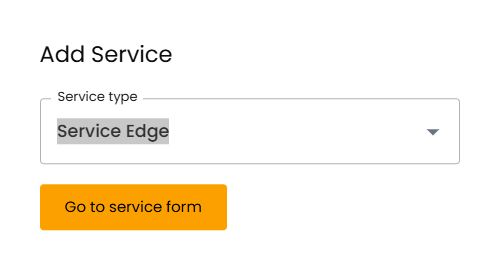
- Navigate to the Home page of the Wanscale Control Center.
- Click Add Service.
- Select Service Edge.
- Click Go to service form.
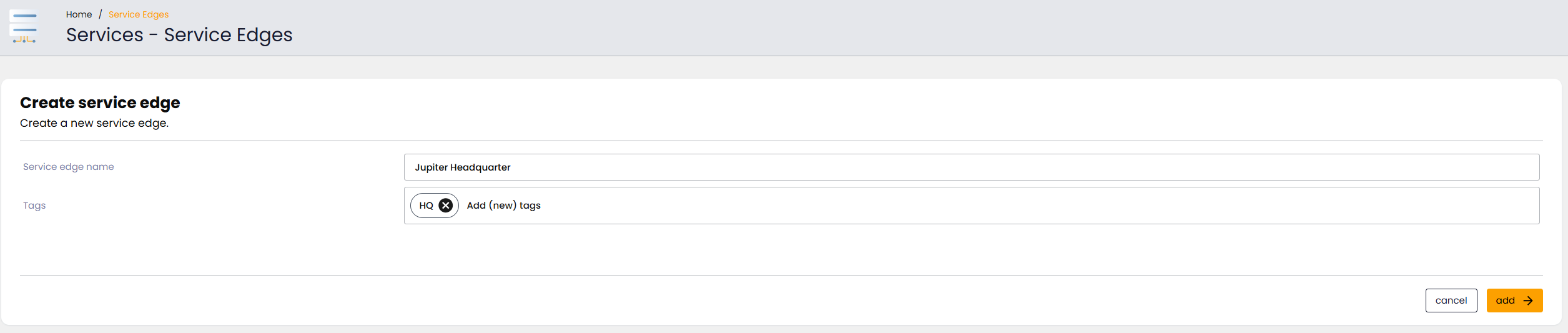
- Complete the following fields:
- Service edge name: Enter a unique name for this SE.
- Tags (optional): Add labels for your own organisation.
- Click Add Service Edge.
Info
In the background Wanscale is notified and will contact you to determine the model for this new SE.
Control Center opens the overview. A new SE typically shows Deployment status Ordered, no VNET yet, no location, and operational status still down until hardware is registered and changes are applied.
Step 2: Configure the Service Edge
Walk through the basics with one LAN interface and two WAN interfaces.
Set the location
- On the overview, click Actions, then Set location. You can also click Fix on the location warning.
- Choose Select Existing Location to reuse a site, or Create New Location.
- For a new location, enter Location name and Address (or toggle Use coordinates), then complete House number.
- Click Save.
To see every site and which services sit there, navigate to Admin and open Locations.
Configure basic interfaces
- In the left sidebar, expand Interfaces and select Basics.
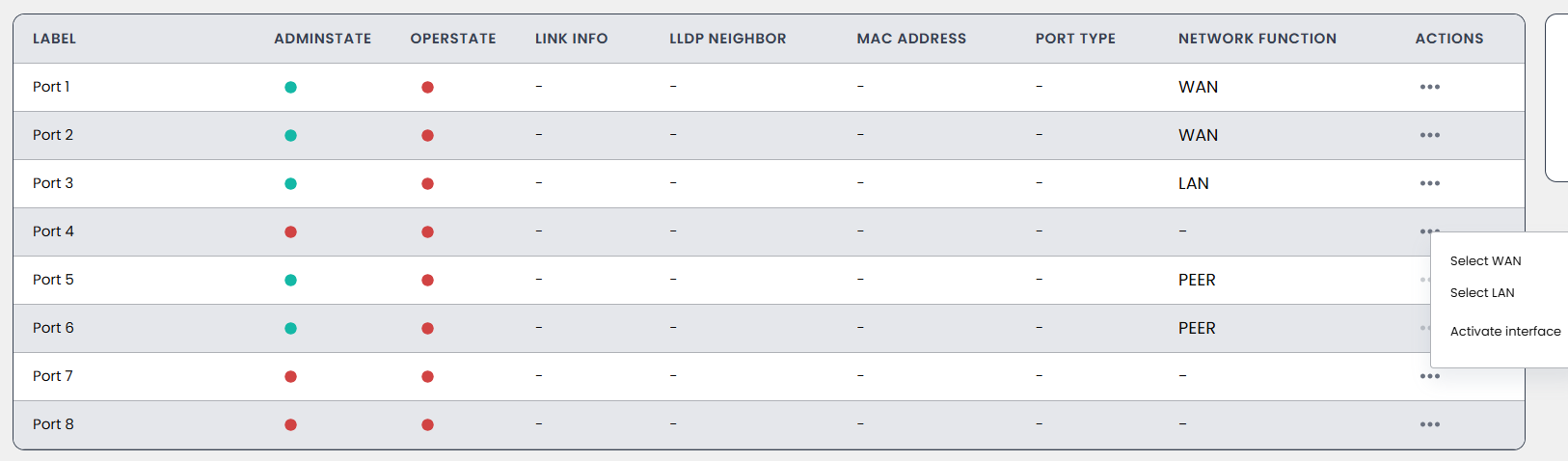
- Review the physical port assignments. By default:
- Ports 1 & 2: WAN.
- Port 3: LAN.
- To change a port function, click the ellipsis (...) in Actions and select the desired function.
Configure LAN interfaces
- In the left sidebar, expand Interfaces and select LAN.
- To view details for the LAN port (for example Port 3), click the arrow next to the port label.
- Click Add IP configuration.
- In the right sidebar, enter:
- Label: A descriptive name for the interface.
- Primary IP address: Enter the address in CIDR format (for example 192.168.1.1/24).
- VlanID (optional): Enter a dot1q VLAN ID if required.
- DHCP: Select DHCP Server (set pool/DNS), DHCP Relay, or No DHCP.
- Click Add.
Tip
A single port can hold multiple configurations, so you can use the port as a dot1q trunk with several VLANs.
Configure WAN interfaces
- In the left sidebar, expand Interfaces and select WAN.
- Click the ellipsis (...) in Actions for the port and click Edit WAN interface.
- Complete:
- Type: A name you will recognise.
- Bandwidth (in Mbps): The speed agreed with the provider (used for traffic shaping).
- MTU size: The MTU in bytes. See MTU Size.
- Upstream carrier type: Select Fixed, Mobile, or Starlink.
- Upstream carrier reference: For example an IMSI or Starlink serial.
- Managed WAN (optional): Select the Managed WAN that is the upstream for this port, or leave No Managed WAN.
- Click Save.
Note
In this example the first port is Fixed (fibre) and the second is Starlink. You still need to assign both interfaces to WAN interface groups. Without that step the ports do not take part in SD-WAN policies and traffic is not sent over them. Interface groups and SD-WAN policies are covered in Path Selection. Because interface groups live on the VNET, you choose which interface belongs to which group when you connect to the VNET.
Selecting a Managed WAN records which Managed WAN belongs with this WAN port. It does not change how the interface is addressed. Set Upstream carrier type to match the connection — Mobile when that Managed WAN is cellular. See Managed WAN.
Step 3: Connect to a VNET
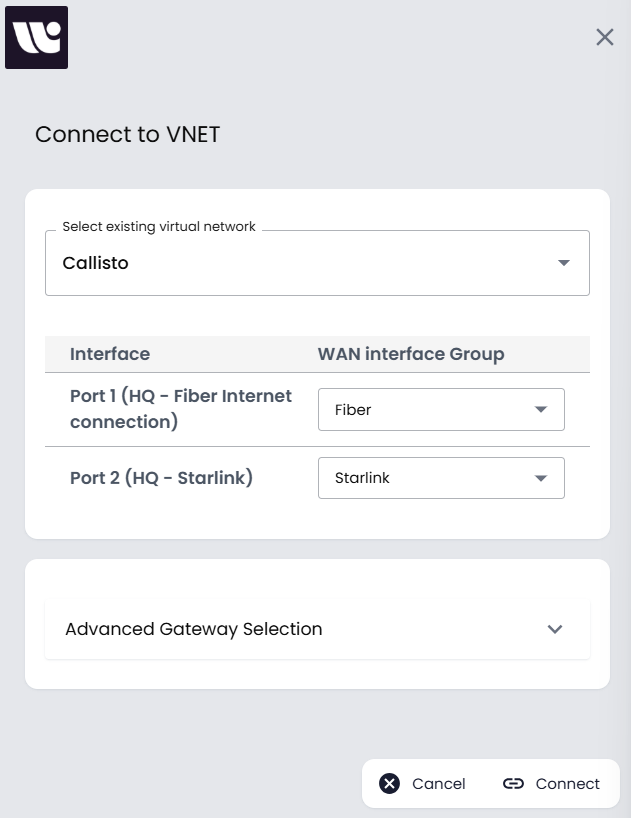
- Click Actions, then Connect to VNET. You can also use Connect to VNET on the overview banner or Details card.
- Select the target virtual network.
- Assign your SE interfaces to the appropriate WAN interface groups.
- Click Connect.
Disconnect from a VNET
- Click Actions.
- Click Disconnect from VNET.
- Confirm that you want to unlink the Service Edge from the virtual network.
The SE no longer takes part in that VNET until you connect it again. Loopback addresses taken from that VNET are removed as well, so you can connect again later without an overlap error.
Step 4: Register hardware
After the physical device arrives, link it using the hardware identifier on the device label:
- Click Actions, then Register hardware. You can also click Register hardware on the Hardware card.
- Enter the hardware identifier.
- Click Register hardware.
To unlink hardware later, use Unregister hardware in Actions.
Note
Applying Changes: Like other networking services in Control Center, your new Service Edge is not active until you deploy the changes. See Workflows and Applying Changes.