DC Connect
Your datacenter environment can be connected to a VNET in the Wanscale Platform with the DC Connect service. A DC Connect consists of one or more Layer 3 Interface Configuration on top of DC Port(s)
This service is dependent on DC Ports and are available in the same locations as DC Ports.
Info
Talk to Wanscale if your DC is not yet on the list, we are always expanding and might already be near your DC.
Overview and health
The overview puts operational health first. At the top you see whether the service is Up, Down, or Degraded, together with Last seen.
You also see port operational status, traffic, and Active alarms.
Banners appear when something still needs work — for example when a tagged port is missing a VLAN, or when no interface configurations have been added yet.
Click Actions for Manage ports, Manage interface configurations, and Manage BGP configurations.
Provisioning Workflow
The diagram below outlines the lifecycle of a DC Connect order:
flowchart LR
    A[DC Ports are connected] --> B(Order DC Connect in Control Center) --> C(Create Interface Configurations) --> D(DC Connect is active, configure your equipment)

    %% Custom style for nodes
    style A fill:#d2e072
    style B fill:#34ebb1
    style C fill:#34ebb1
    style D fill:#34ebb1
DC Connect Redundancy
To create a redundant DC Connect you will need two DC Ports in different Availability Zones. In the Wanscale Platform DC Connect Gateways are created and connected to the DC Ports. VRRP is used to create a redundant setup, with the (v)lan extending over your switching infra.
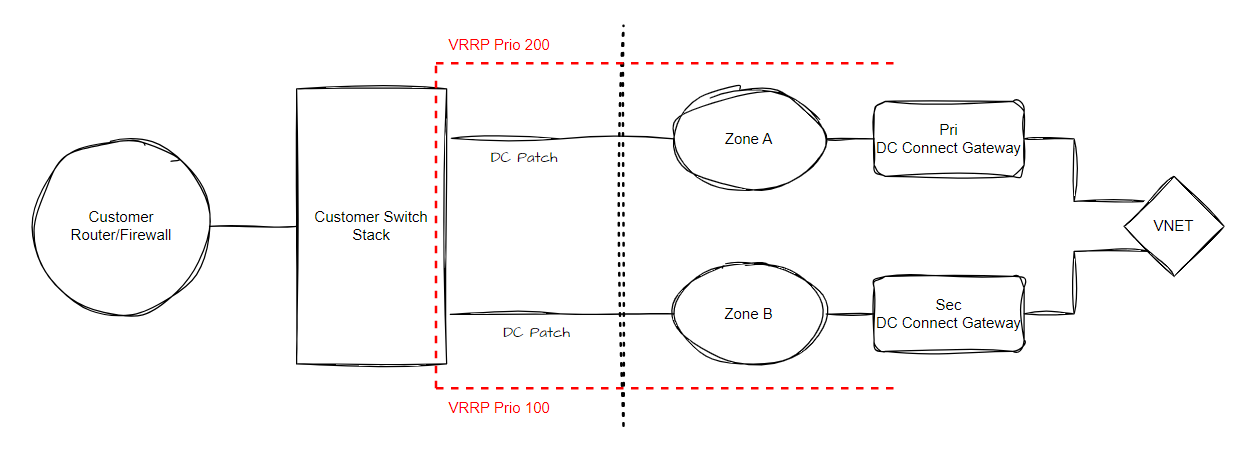
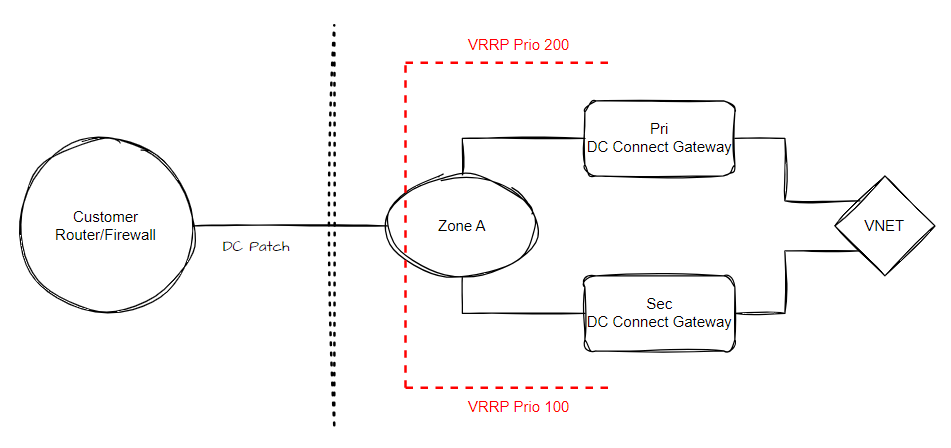
With a Single DC Port setup you have two options.
- Redundant Interface Configuration - Uses VRRP with two Gateways
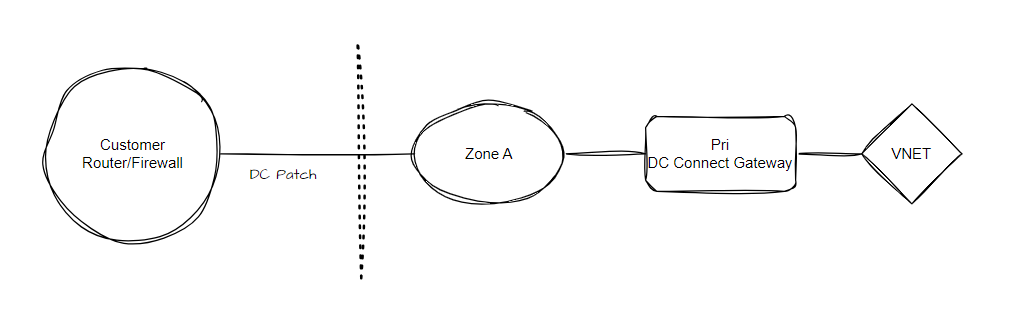
- Single Interface Configuration - Connects to only one Gateway in the platform
Interface Configurations
On a DC Connect you can configure multiple Interface Configurations. An Interface Configuration creates a Layer 3 IP configuration on a (v)Lan to which you can connect your DC equipment.
If you configure a Redundant Interface Configuration on a DC Connect, you need to configure at least a /29 prefix (or larger) on the interface to allow enough addresses for the VRRP configuration.
If you configure a Single Interface Configuration on a DC Connect, you can configure a /30 prefix (or larger) on the interface.
Vlans
It is possible to configure vlans on both the DC Connect and on the Interface Configurations.
| Vlan on DC Connect | Vlan on Interface | Result |
|---|---|---|
| No | No | Traffic is untagged |
| No | Yes | Traffic is tagged - dot1q |
| Yes | No | Traffic is tagged - dot1q |
| Yes | Yes | Traffic is double tagged - QinQ |
DC Connect Examples
Single Port DC Connect
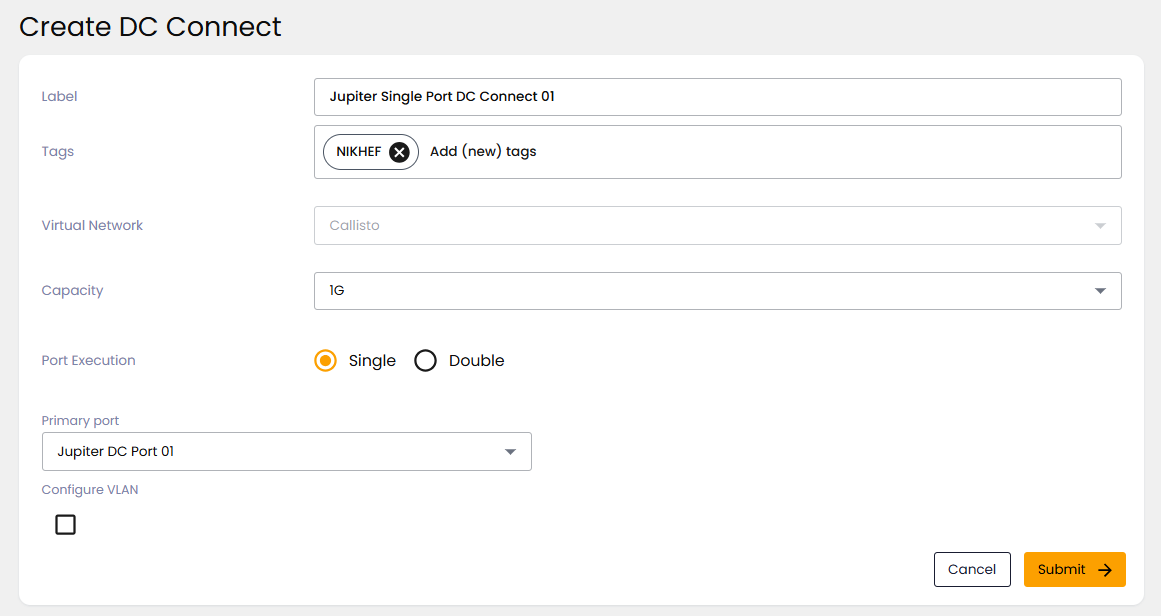
Follow these steps to order a new Single Port DC Connect via the Wanscale Control Center:
- Navigate to the Home page of the Wanscale Platform.
- Click the Add Service button.
- Select DC Connect from the service list.
- Click Go to service form.
- Complete the following fields in the service form:
- Label: Enter a descriptive name for the DC Connect.
- Tags (Optional): Add metadata for internal organization.
- Virtual Network: Select the VNET this DC Connect connects to.
- Capacity: Select either 1 Gbps or 10 Gbps.
- Port execution: Choose a Single DC Ports
- Select the primary port: Select a DC port
- Configure Vlan: If you check this box you can enter a VlanID
- Click Submit.
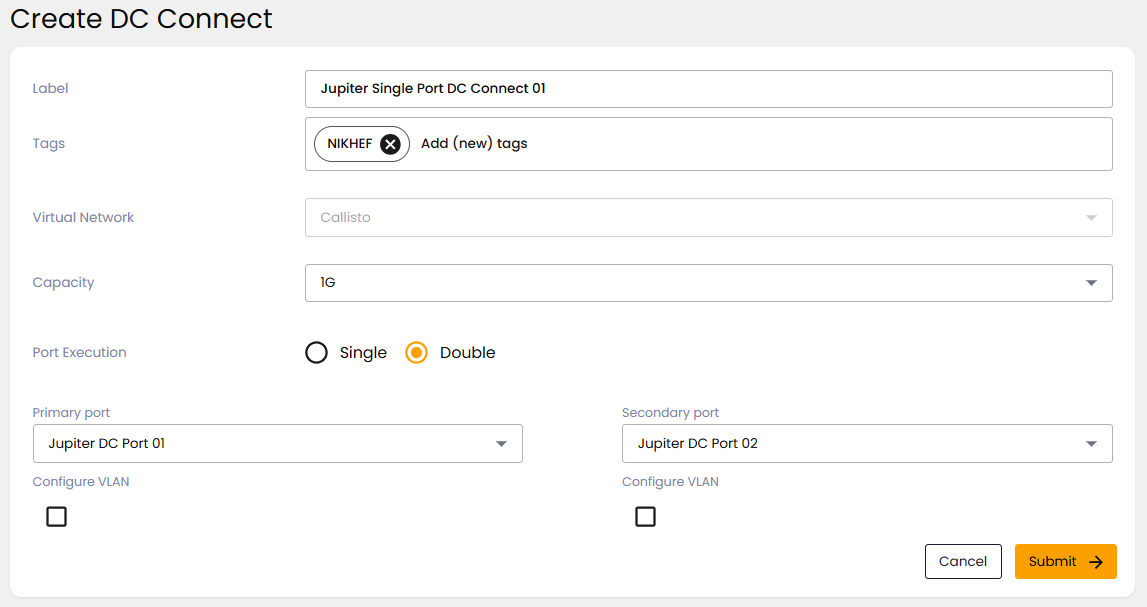
Double Port DC Connect
Follow these steps to order a new Double Port DC Connect via the Wanscale Control Center:
- Navigate to the Home page of the Wanscale Platform.
- Click the Add Service button.
- Select DC Connect from the service list.
- Click Go to service form.
- Complete the following fields in the service form:
- Label: Enter a descriptive name for the DC Connect.
- Tags (Optional): Add metadata for internal organization.
- Virtual Network: Select the VNET this DC Connect connects to.
- Capacity: Select either 1 Gbps or 10 Gbps.
- Port execution: Choose Double DC Ports
- Select the primary port: Select a DC port
- Configure Vlan (Pri): If you check this box you can enter a VlanID
- Select the secondary port: Select a DC port
- Configure Vlan (Sec): If you check this box you can enter a VlanID
- Click Submit.
Interface Configuration Examples
Single Interface Configuration
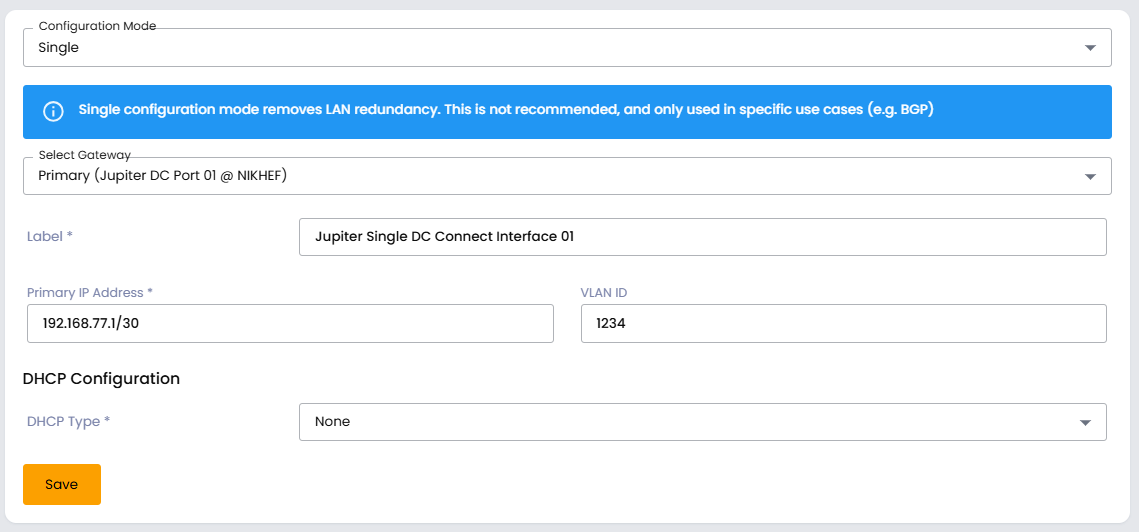
Follow these steps to create a Single Interface Configuration via the Wanscale Control Center:
- Navigate to the Home page of the Wanscale Platform.
- Select the DC Connect from the Overview List.
- In the right sidebar, select Interface Configuration from General.
- Click Make IP Configuration for LAN.
- Complete the following fields in the service form:
- Configuration Mode: Select Single as configuration mode.
- Select Gateway: Select on which gateway you want this configured.
- Label: Provide a label for this configuration.
- Primary IP Address: Provide an IP address in CIDR format. At least /30 or larger for a Single Interface Configuration.
- Vlan ID: Provide an optional Vlan ID
- DHCP Configuration
- None DCHP is not configured for the interface configuration
- Click Save.
Redundant Interface Configuration
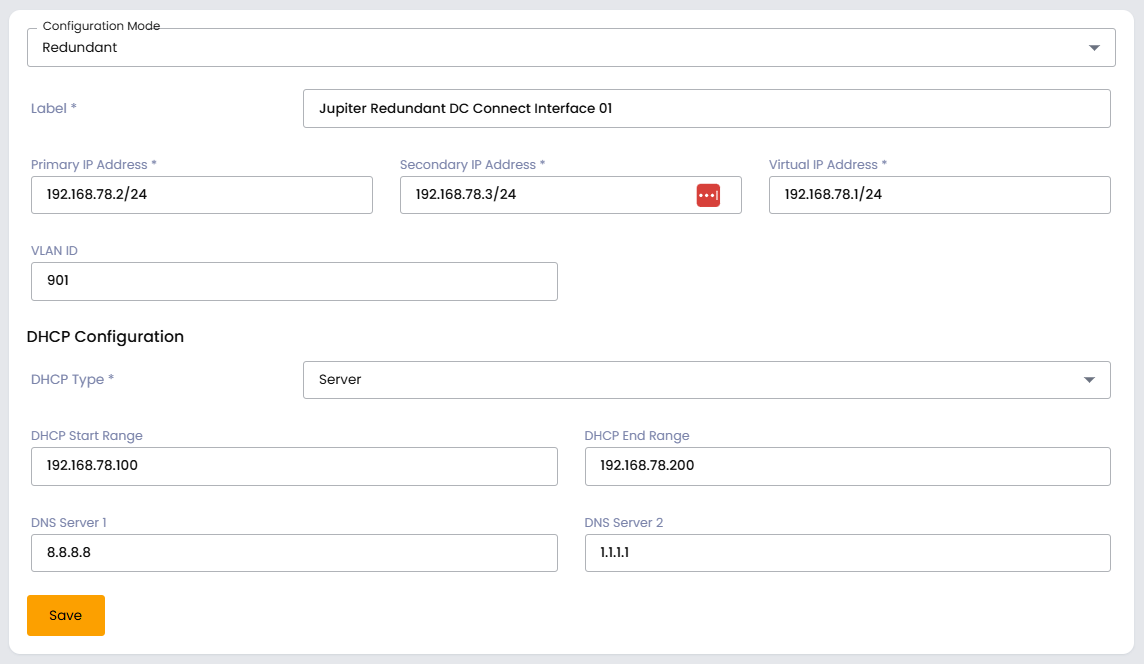
Follow these steps to create a Redundant Interface Configuration via the Wanscale Control Center:
- Navigate to the Home page of the Wanscale Platform.
- Select the DC Connect from the Overview List.
- In the right sidebar, select Interface Configuration from General.
- Click Make IP Configuration for LAN.
- Complete the following fields in the service form:
- Configuration Mode: Select Double as configuration mode.
- Label: Provide a label for this configuration.
- Primary IP Address: Provide an IP address in CIDR format for the first Gateway. At least /29 or larger for a Single Interface Configuration.
- Secondary IP Address: Provide an IP address in CIDR format for the second Gateway.
- Virtual IP Address: Provide an IP address in CIDR format. This is used
- Vlan ID: Provide an optional Vlan ID
- DHCP Configuration
- Server
- DHCP Start Range: Provide the IP address for DHCP Pool Start
- DHCP End Range: Provide the IP address for DHCP Pool End
- DNS Server 1: Provide the IP address DNS Server 1
- DNS Server 2: Provide the IP address DNS Server 2
- Server
- Click Save.
Note
Applying Changes: Like all networking services in Control Center, your new DC Connect will not be active until you deploy the changes. See Workflows and Applying Changes.